Everything you need to use TBF Big King Media across a WordPress multisite network.
This one-page docs experience is designed for fast scanning, anchored navigation, and deep feature tutorials. It covers the shared media library, indexer, galleries, audio modes, frontend uploads, media SEO, network controls, and every major interface shown across your current screenshot set.
- How the plugin unifies media access across a multisite network
- How to configure network-wide settings, indexing, and overrides
- How to publish galleries, players, uploaders, and media interfaces anywhere with shortcodes
- How to run frontend upload and management experiences without forcing users into wp-admin
- How to improve discoverability and presentation with metadata, thumbnails, and media SEO controls
✨What Big King Media is built to do
TBF Big King Media is a feature-rich WordPress multisite shared media library plugin that turns scattered subsite media into a network-ready content system. Instead of forcing administrators and editors to hop between dashboards, duplicate files, or rebuild galleries site by site, Big King Media centralizes discovery, publishing, management, and presentation. The plugin is especially useful for media-heavy networks, content brands, education networks, franchise sites, music-driven sites, and any multisite setup that needs reusable assets, unified control, and frontend-friendly workflows.
Shared media access
Search and reuse media across subsites from one guided experience instead of maintaining isolated libraries manually.
Publishing tools
Create galleries, lightboxes, playlists, floating players, uploaders, and management interfaces without custom development.
Network governance
Apply global settings and optional network overrides so the main admin can keep behavior consistent while still allowing controlled flexibility.
🛠Installation and first-time setup
Upload and network activate
Upload the plugin ZIP in the network admin area and activate it at network level so shared library logic and network settings are available everywhere.
Review network settings
Open the Big King Media settings screens to define how indexing, access, gallery behavior, media presentation, and overrides should work across the network.
Run the media indexer
Build or refresh the shared media index so subsites can discover assets quickly. Re-run it after large imports or major structural changes.
📊Shared Media Library Dashboard
The dashboard acts as the plugin’s central command area. This is where admins typically monitor the shared library state, understand available controls, and move into the main publishing features. It should be treated as your network media operations hub: the place to orient new users, verify that indexing is healthy, and launch into configuration, gallery building, SEO improvements, or frontend tooling.

Use this screen to
- Confirm the shared media system is active and visible
- Move quickly into index building and maintenance tasks
- Access the plugin’s publishing and display feature set from one place
- Train team members on the “big picture” before they dive into advanced modules
🗂Shared Media Library Modal
The shared modal is one of the plugin’s most important user-facing experiences. It extends the familiar WordPress media interaction model with network-wide asset access, filtering, and subsite-aware browsing. Instead of breaking the editor flow, it keeps users inside a recognizable upload/select pattern while dramatically expanding what they can reach.

Why this matters
- Users can work faster without leaving their current editing context
- Filters and subsite controls reduce clutter in larger networks
- Teams gain faster reuse of logos, brand assets, audio, visuals, and reusable media kits
🔎Network Media Indexer
The AJAX-powered index builder is what makes large-scale media discovery practical. It scans media across subsites, organizes it into a shared index, and gives the rest of the plugin a reliable foundation for fast searching and browsing. On growing networks, the indexer is essential maintenance infrastructure.

Best practices
- Run after bulk imports, migrations, or major media cleanups
- Rebuild when network settings that affect visibility or categorization change
- Use as part of your maintenance routine for very active multisite networks
Result: the shared modal, galleries, uploaders, and management views all benefit from a healthier, cleaner index.
🌐Network Settings
The network settings screen gives the main administrator a master panel for media indexing behavior, permissions, gallery defaults, and cross-network presentation logic. This is where you define the default shape of the shared experience before letting subsites start publishing with it.
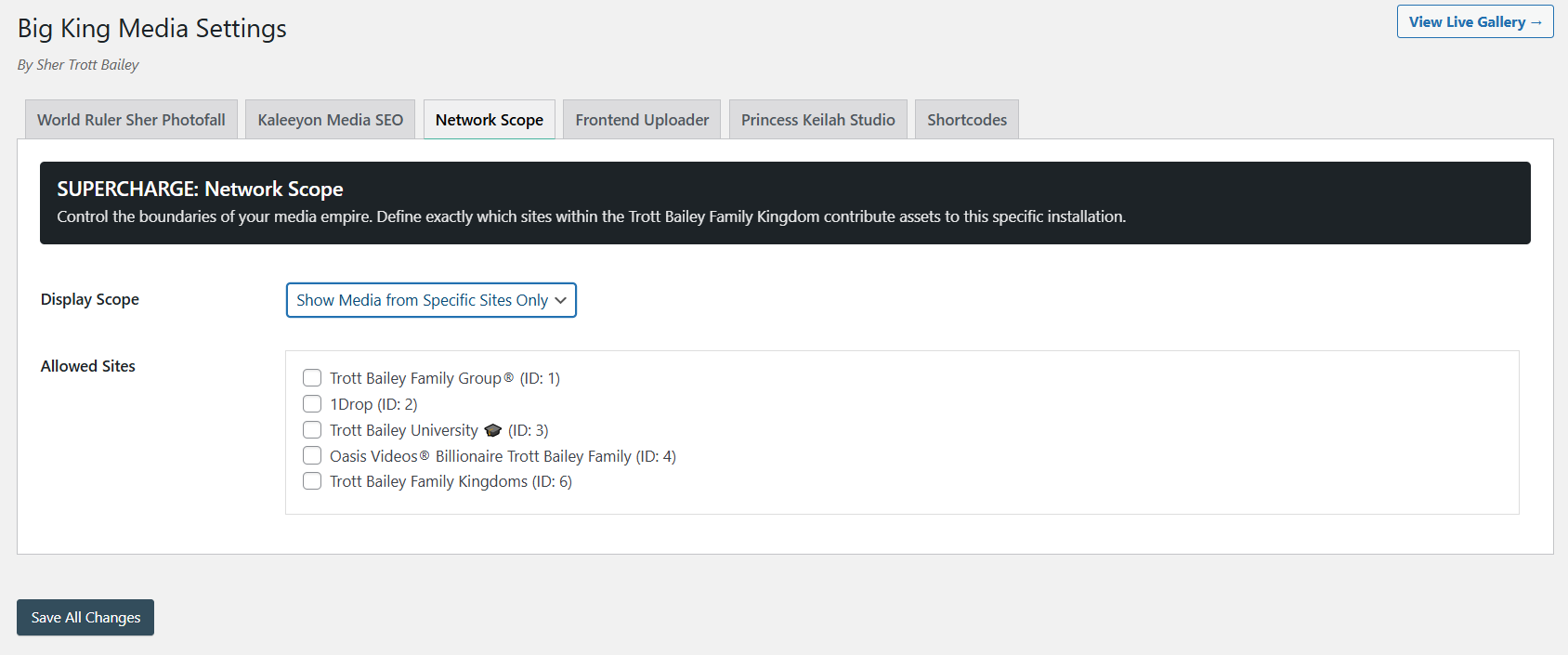

Permissions
Decide who can browse shared assets, who can upload into shared flows, and how much media power should be exposed outside the network admin.
Presentation defaults
Define sensible gallery, lightbox, and media behavior so published outputs feel consistent across sites.
Operational consistency
Use global defaults to keep teams aligned and reduce support requests caused by fragmented subsite configurations.
🧩Network Override Strategy
Network override settings let the main admin enforce master behavior where needed. This is powerful in enterprise, franchise, or brand-sensitive environments where some media flows should not drift by subsite. Use overrides when consistency matters more than local experimentation, or when you want to allow subsites to use features but not redefine how the network media system behaves at core level.
🖼Photofall Gallery Settings
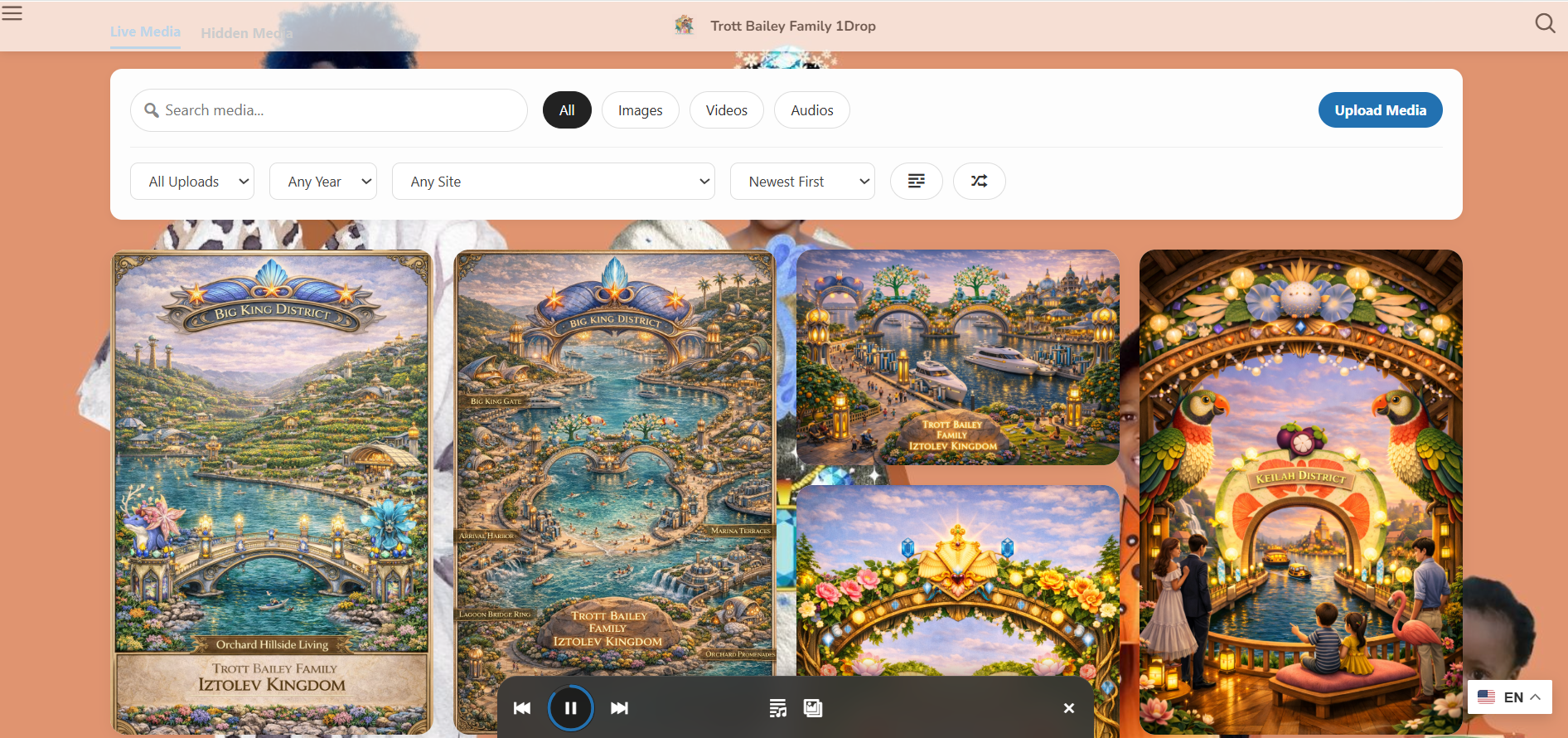
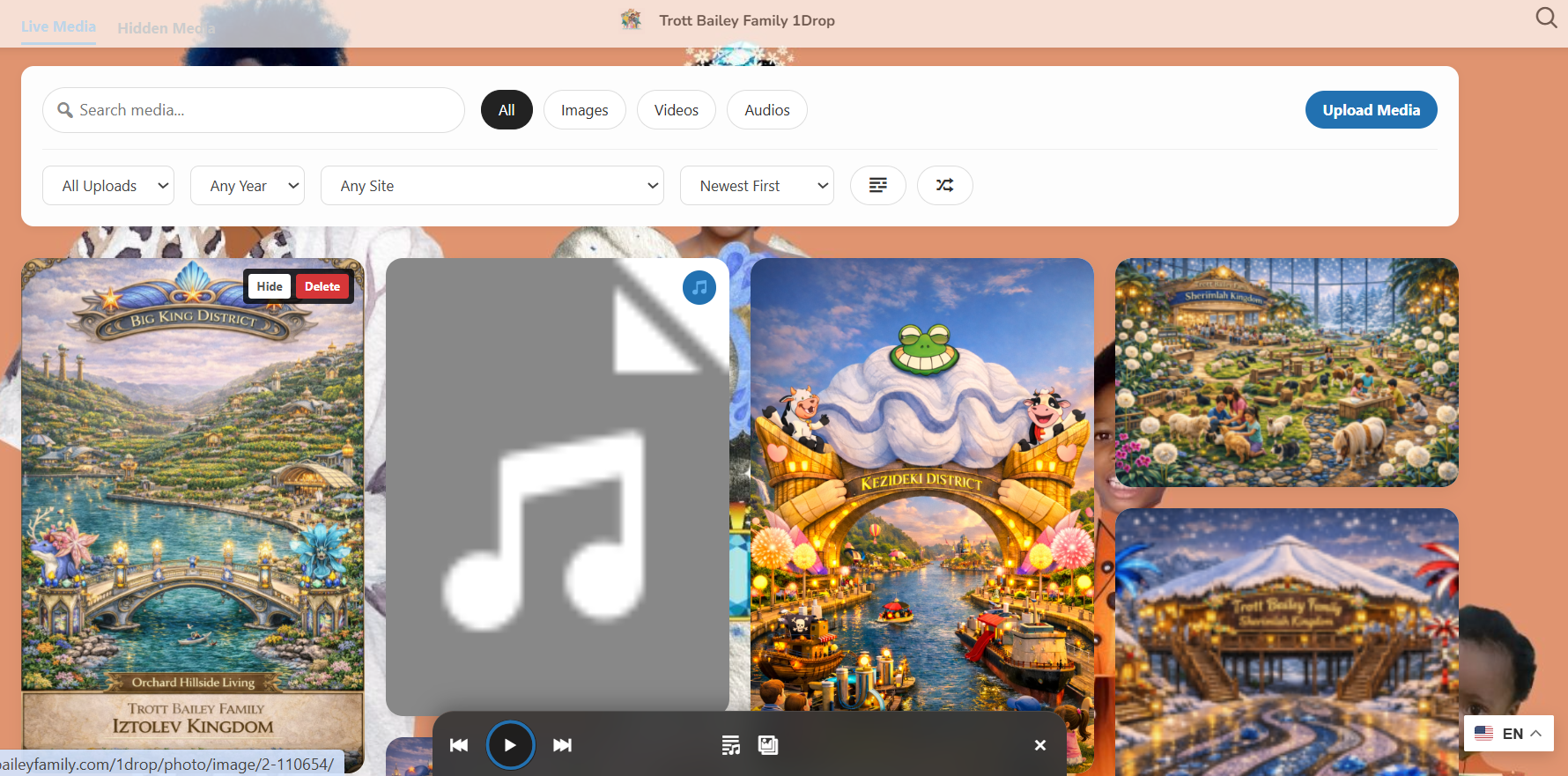
Photofall is the plugin’s Pinterest-style masonry gallery system for images, audio, and video presentation. It is ideal when you want media-heavy layouts that look editorial, modern, and spacious rather than rigidly boxed. Use it to turn the shared library into a front-facing content experience, not just a storage utility.

Great use cases
- Portfolio or showcase pages across multiple subsites
- Music, podcast, and visual storytelling archives
- Press pages, campaign pages, or resource hubs built from shared assets
▦Responsive Masonry Grid
The responsive masonry mode gives you a high-speed shared media gallery layout built for modern devices. It helps the same media collection scale elegantly across desktop, tablet, and mobile, while preserving a visual rhythm that feels editorial instead of cramped.
Publishing guidance
- Use for image-led pages, media libraries, and visual landing pages
- Pair with lightbox mode when you want deeper asset interaction without cluttering the grid
- Use with shared media collections to avoid rebuilding the same gallery structure across sites
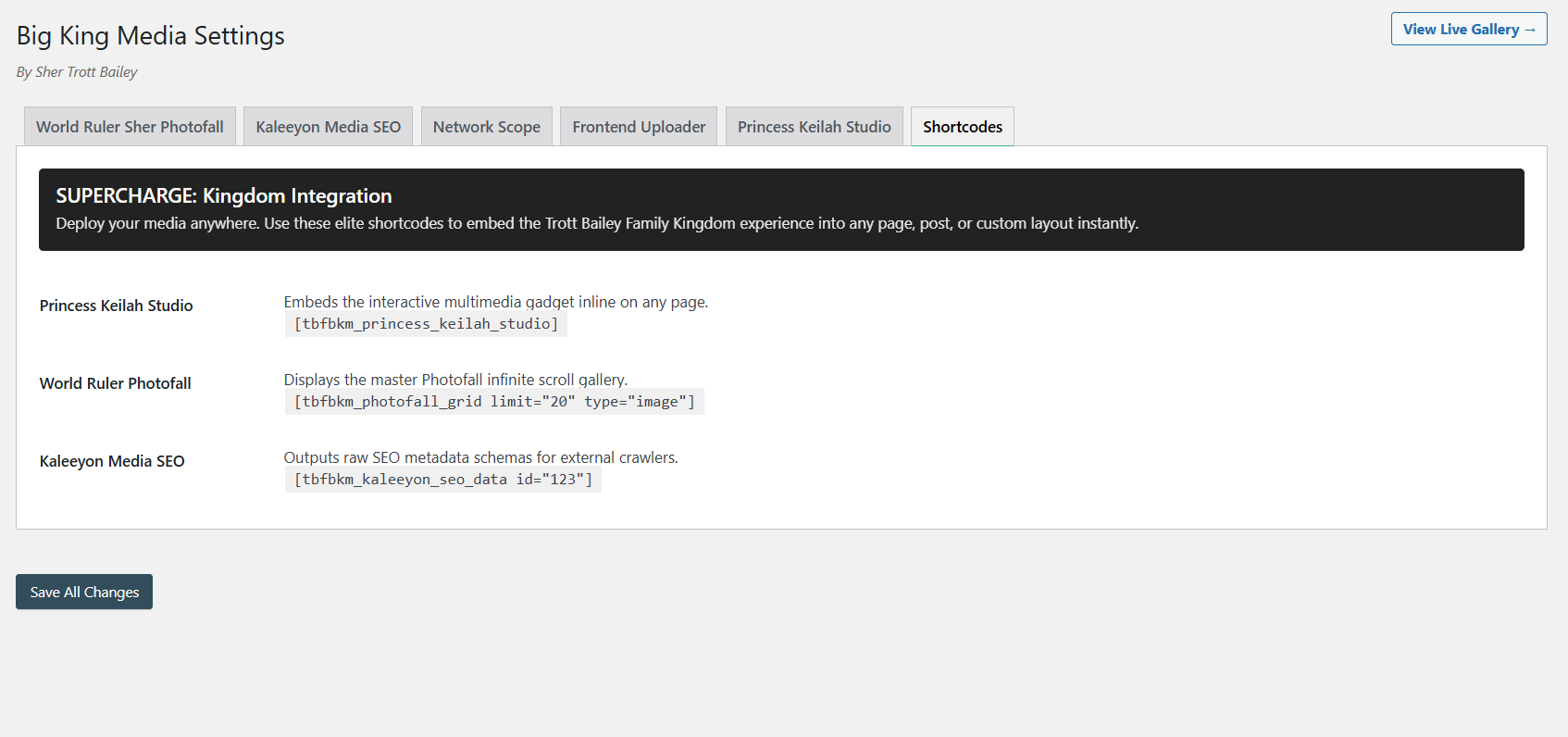
⌘Shortcodes: add plugin experiences anywhere
Big King Media includes shortcode support so you can place uploaders, galleries, players, and other interfaces into posts, pages, templates, widgets, or builder layouts. This makes the plugin far more than an admin utility. It becomes a front-end publishing toolkit.
Where shortcodes shine
- Elementor sections, Gutenberg blocks, and classic page builders
- Internal staff portals, artist profile pages, media vaults, or customer-facing resource centers
- Rapid deployment when you want advanced media features without custom template work
Best practice: create a reusable “media module” library on your site that documents which shortcodes your team should use for each scenario.
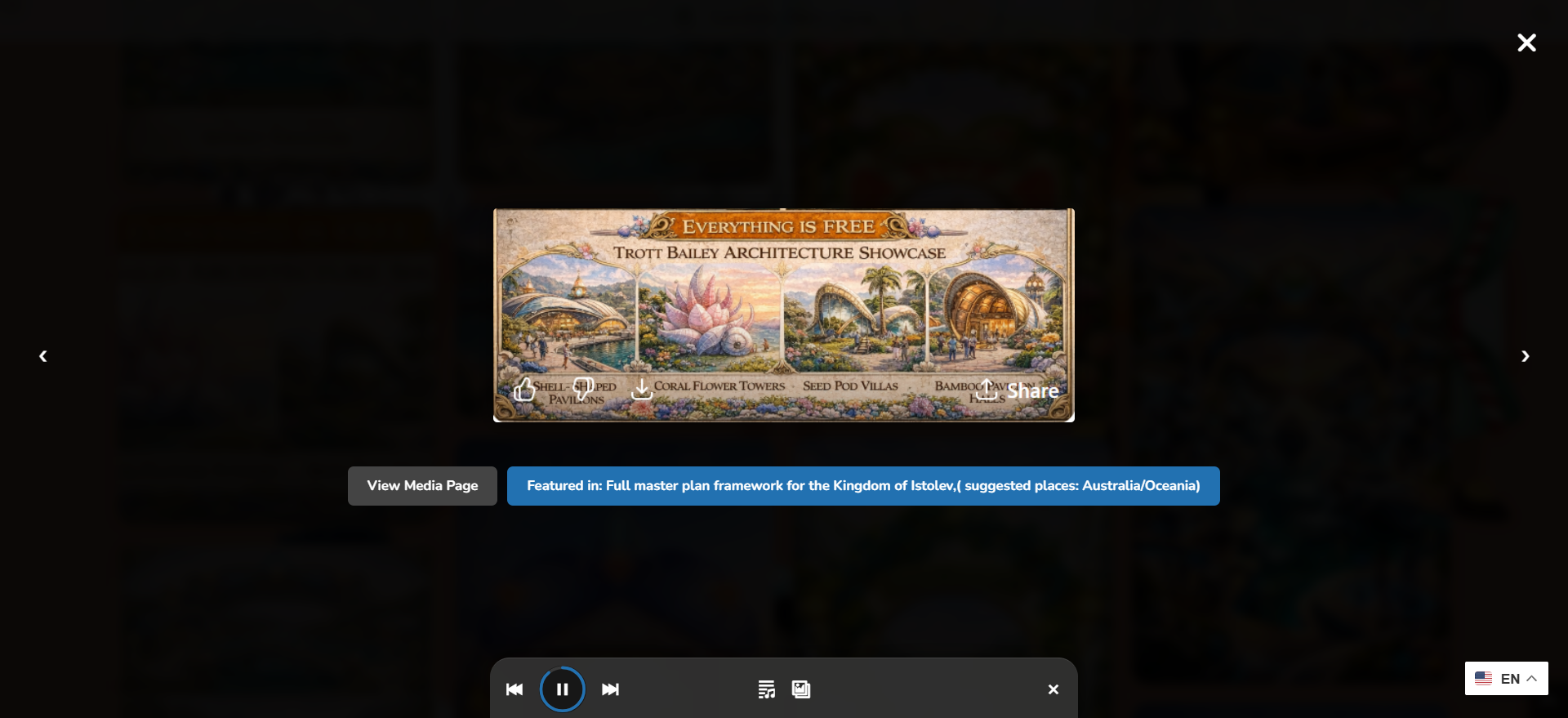
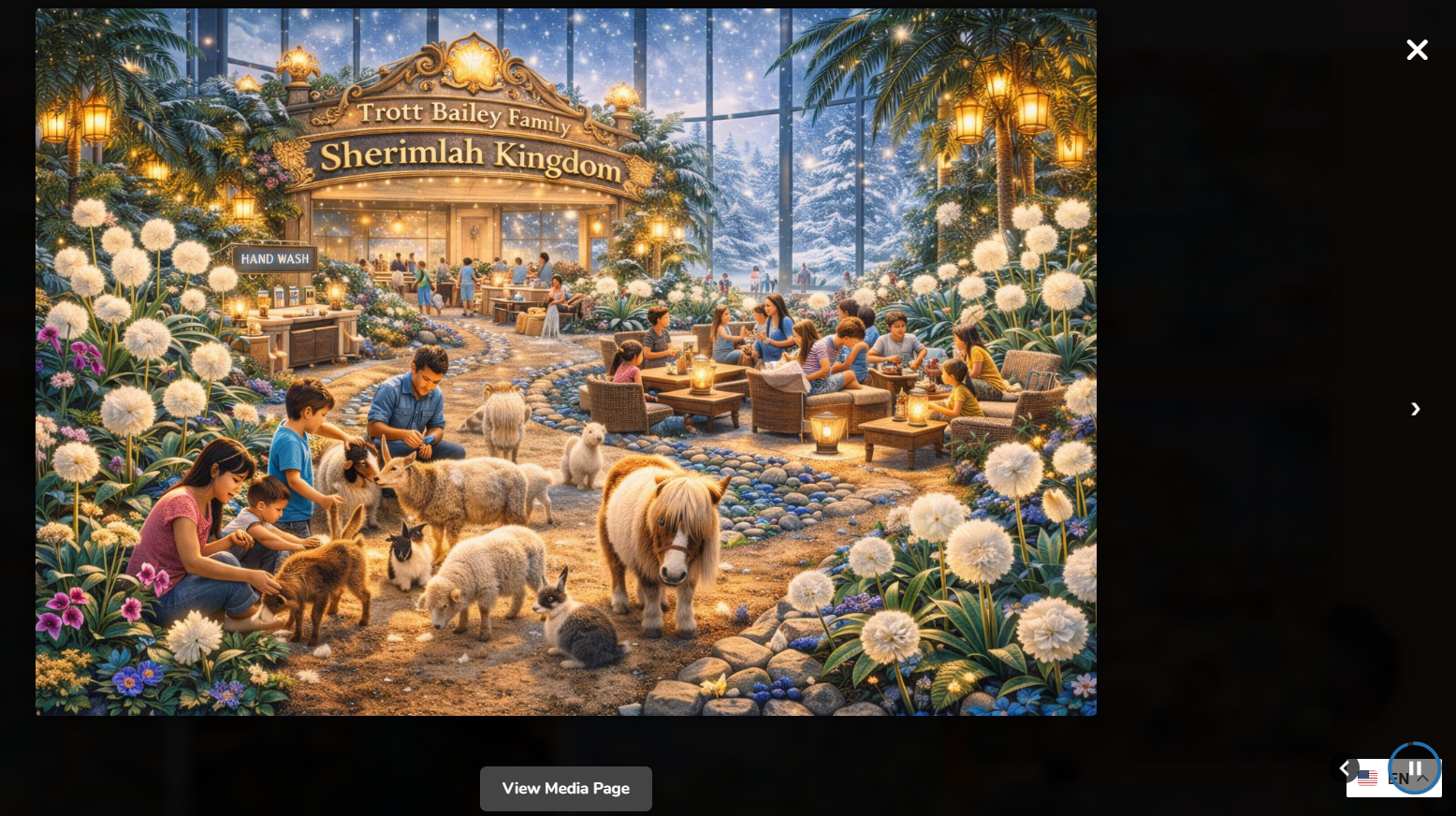
🔦Lightbox display
The lightbox experience opens images, video, and audio in a cleaner interactive layer. This is ideal when you want visitors to explore rich media without navigating away from the current page. Pair it with galleries and shortcode-driven collections to create polished browsing experiences from shared network assets.
Good for
- Visual galleries that should feel premium and immersive
- Media collections where users want quick preview before deeper engagement
- Brand pages and landing pages that should stay elegant under heavy media use
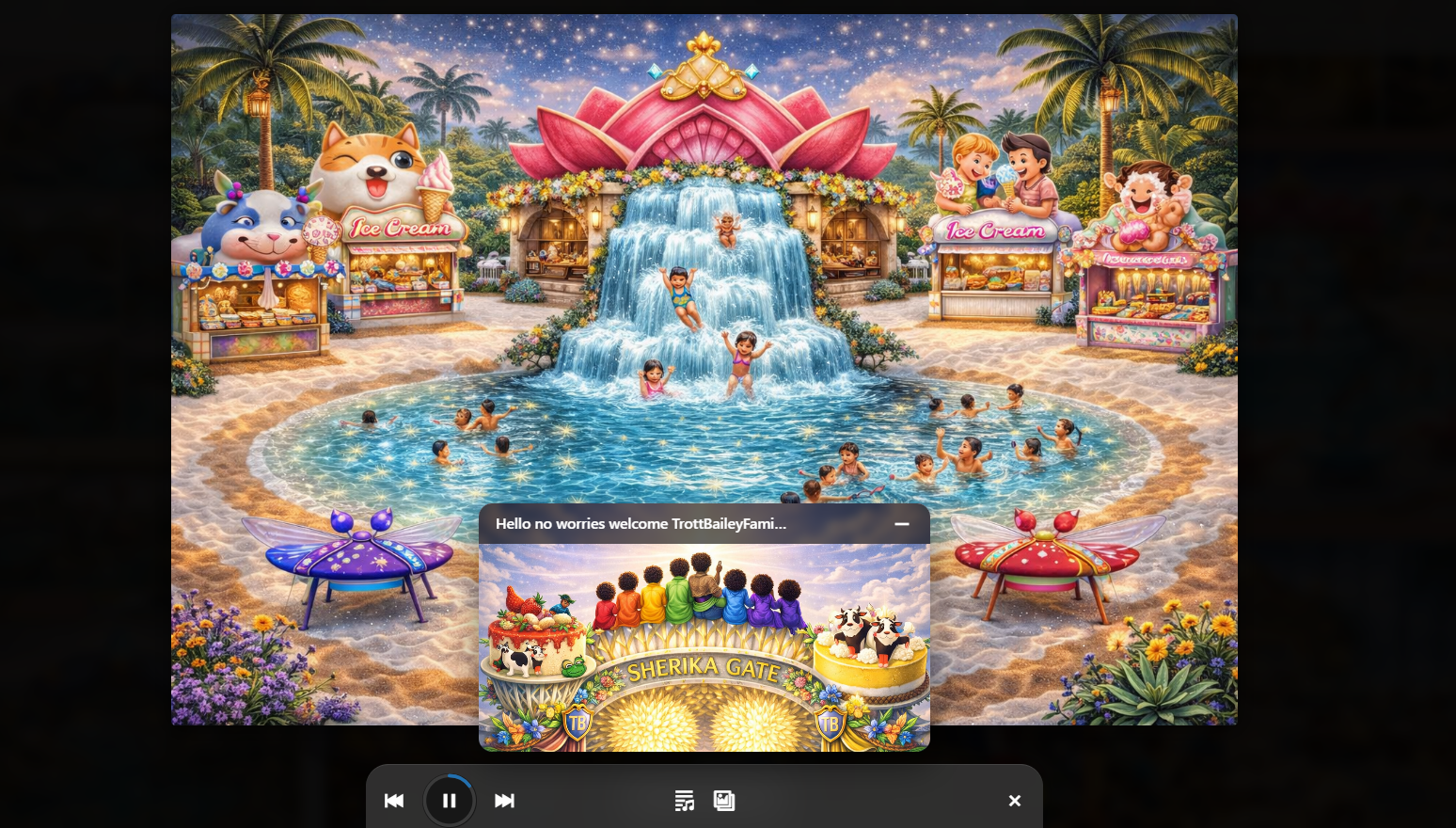
🎛Integrated Studio Mode
Studio Mode combines synchronized slideshow and audio playback behavior into a richer presentation layer. It is built for websites that want music, spoken-word, or playlist experiences to carry visuals at the same time. Think of it as a storytelling mode: one that lets you turn media into a branded, guided experience rather than a collection of disconnected files.
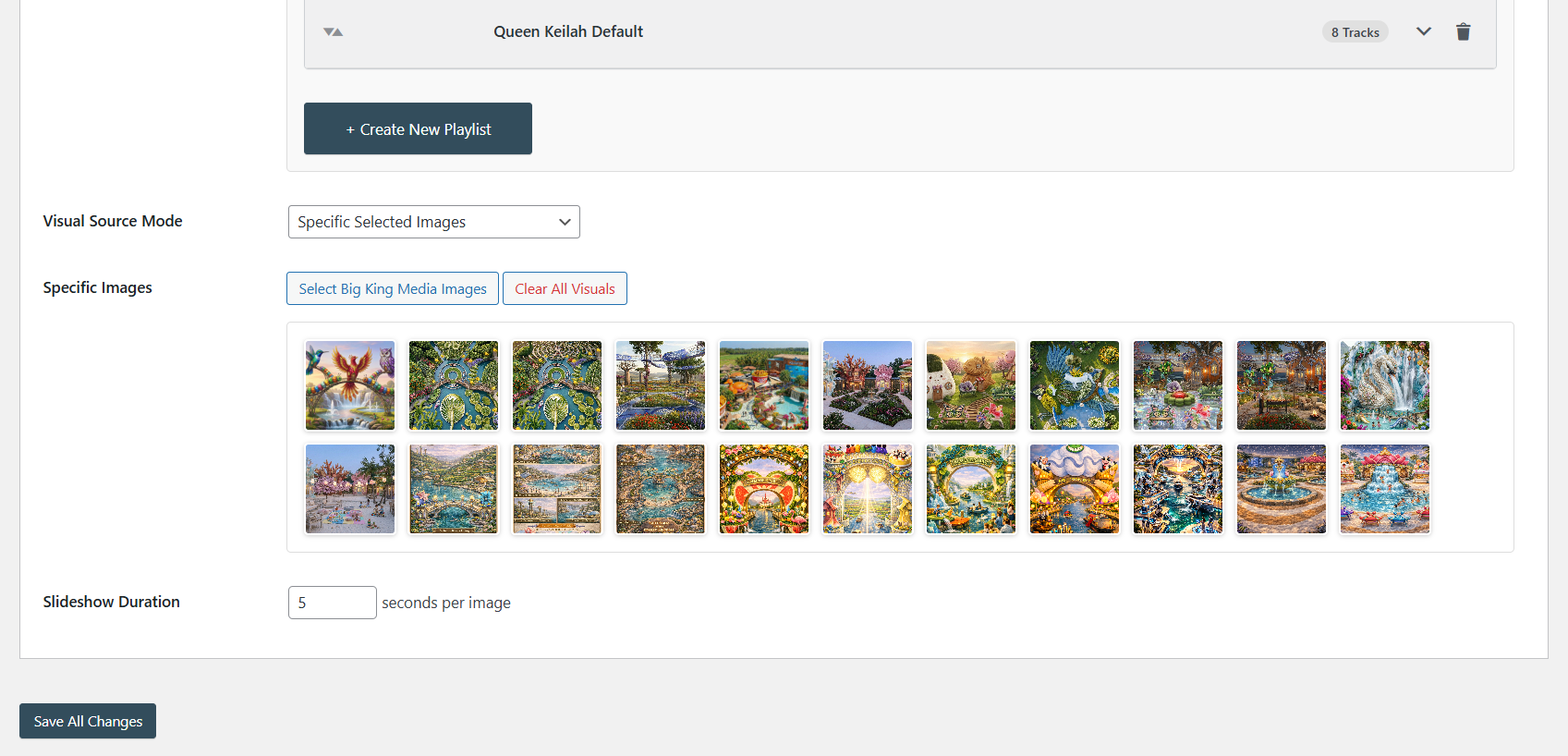
🎵Floating players, compact mode, and audio-focused playback
Big King Media supports multiple playback experiences so the same audio library can be presented in different ways depending on context. Use the rich floating player when you want a more visual, playlist-driven interface; use compact mode for a lighter footprint; use audio-focused mode when the content itself should take center stage.
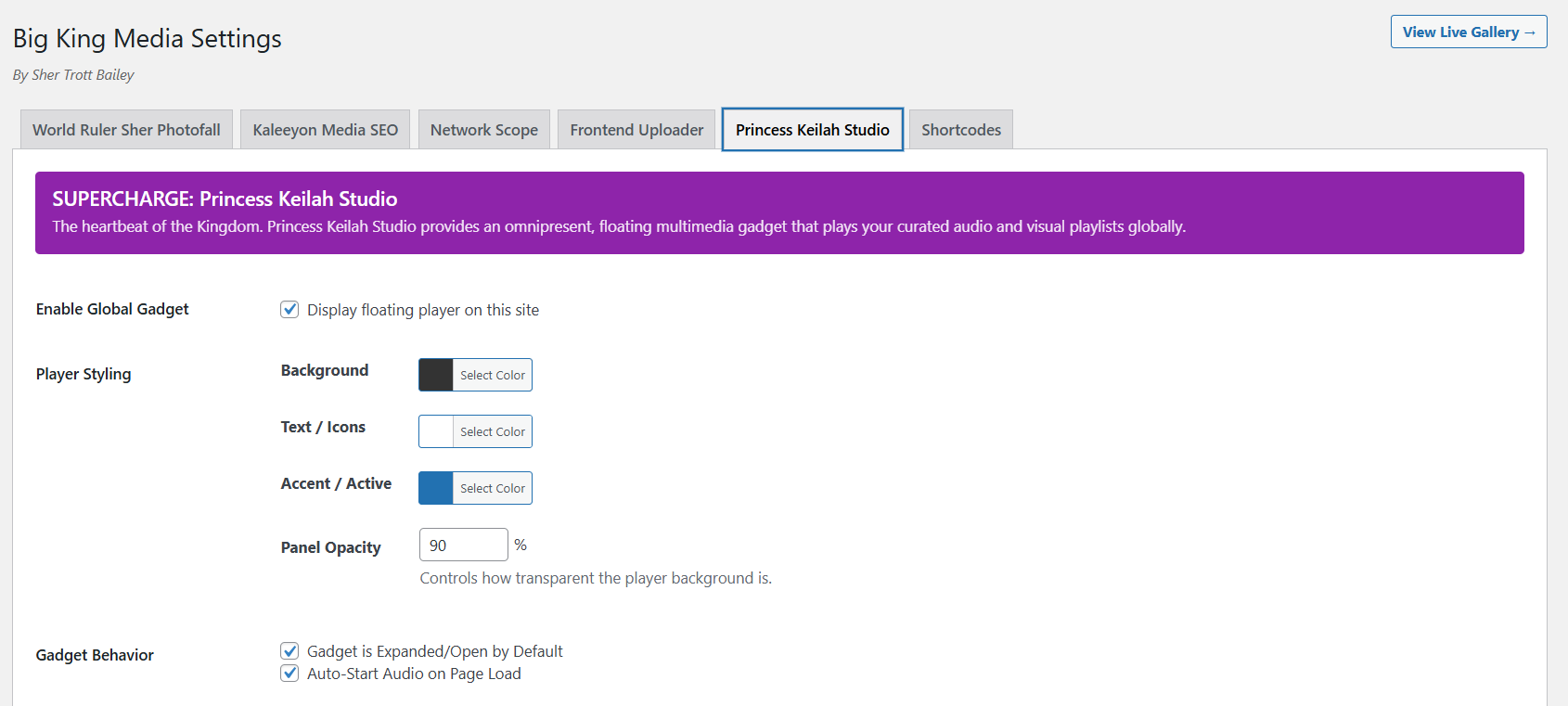
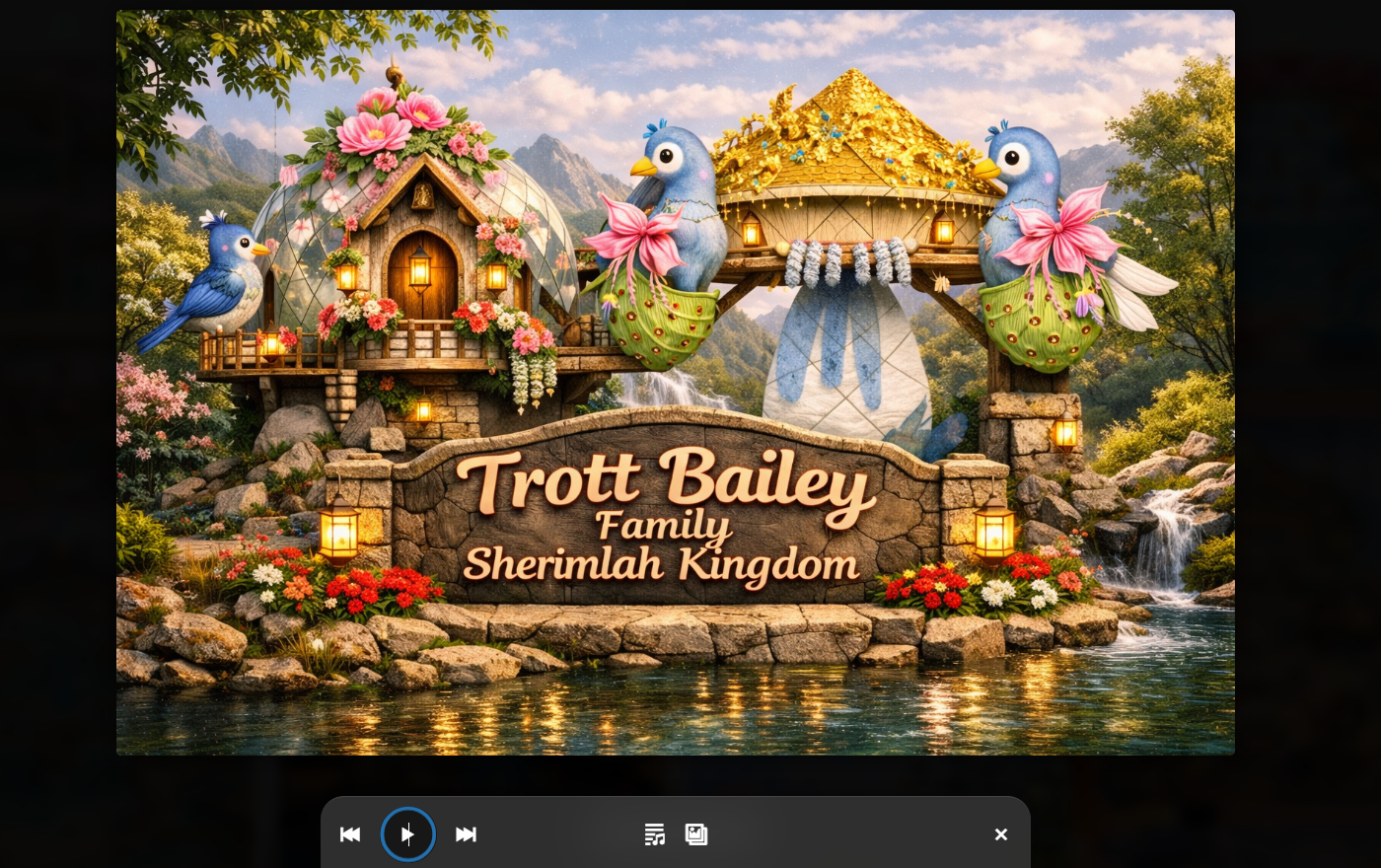
Floating rich player
Best for playlists, slideshow-enhanced media, and immersive music or storytelling pages.
Compact player mode
Best when you want site-wide playback access with the lightest visual footprint possible.
Audio-focused mode
Best for podcasts, sermons, music archives, spoken word, and utility-first playback interfaces.
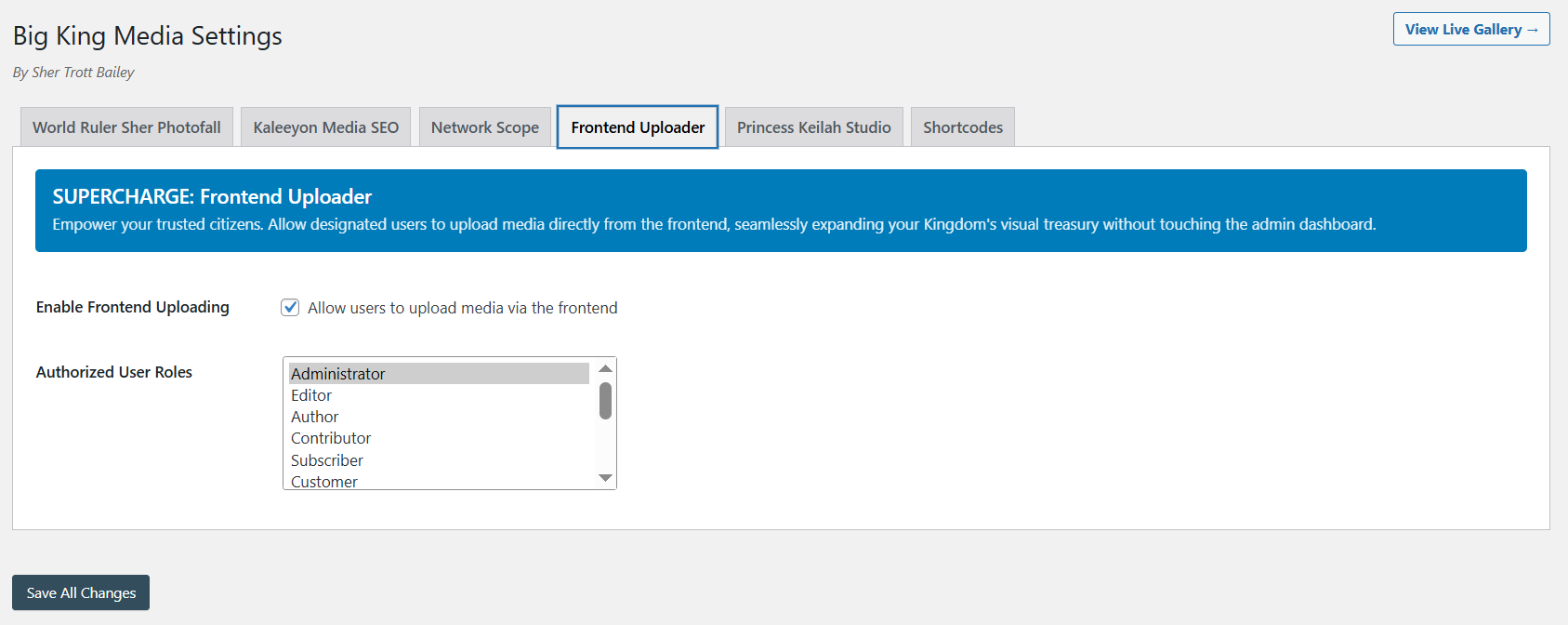
⬆Frontend uploader, direct shared uploads, and frontend media management
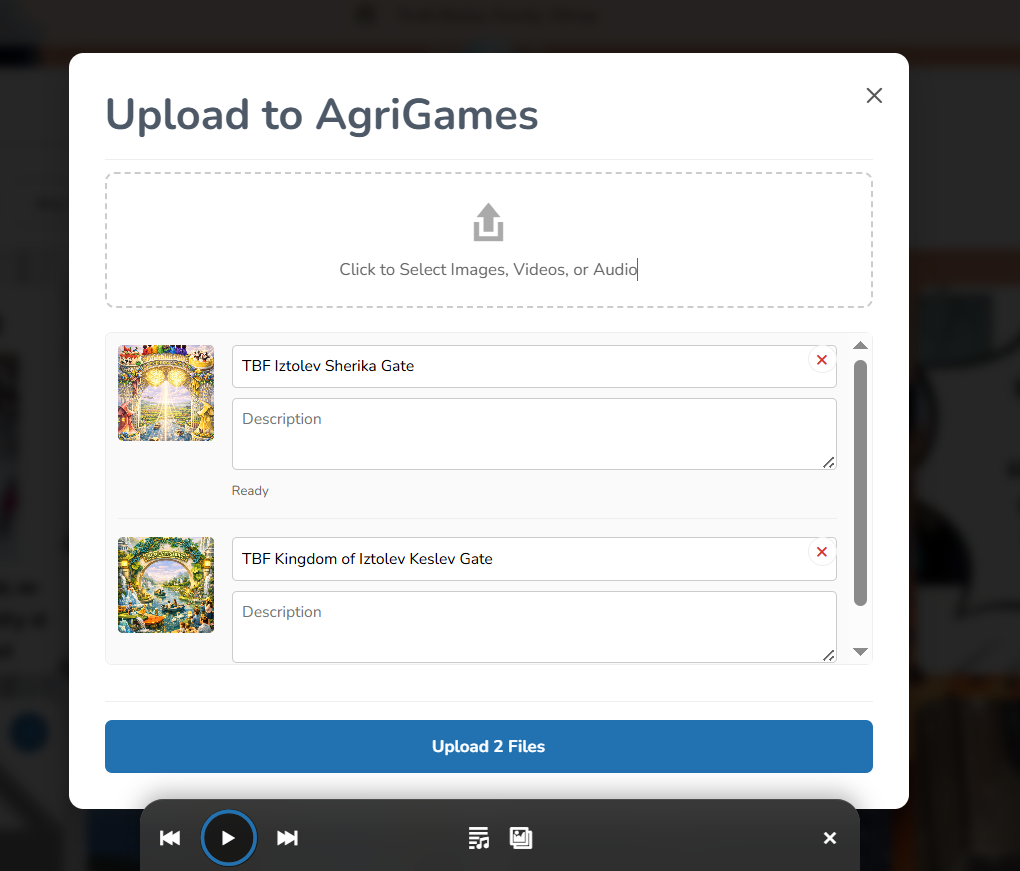
One of Big King Media’s strongest advantages is how much work can happen outside the WordPress dashboard. This makes it easier to create contributor experiences, artist portals, team submission pages, client upload pages, or semi-public media workflows while keeping wp-admin cleaner and more restricted.
Submission portals
Let contributors upload files from a controlled page instead of learning wp-admin.
Admin efficiency
Allow authorized users to add titles, alt text, and asset details directly in the upload flow.
Frontend curation
Hide or delete media on the front end where permissions allow, reducing dashboard friction.
Safer access model
Expose only the media tools users need, rather than broad backend privileges.
🏷Thumbnail and metadata tools
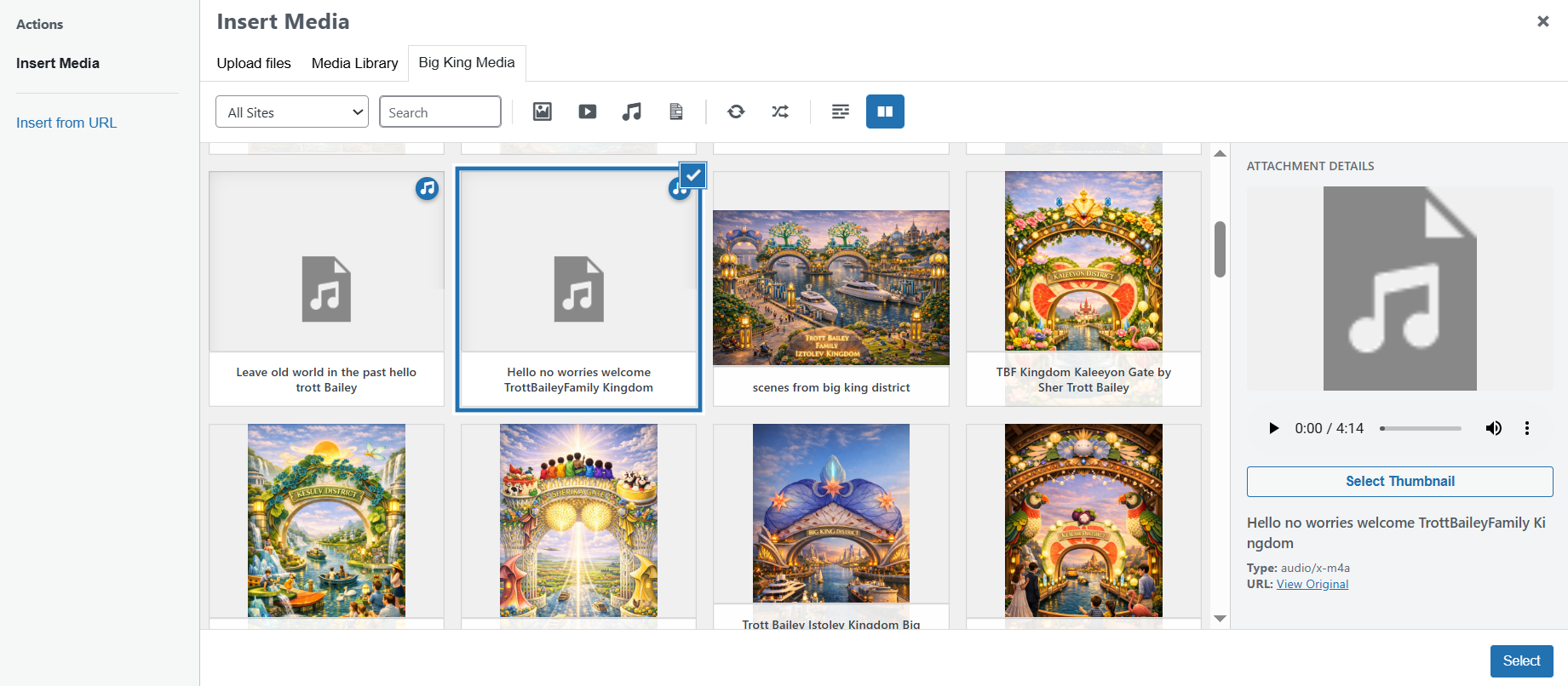
Media becomes much more reusable when it is labeled, thumbnailed, and described well. Big King Media includes tools for assigning thumbnails to audio and video, along with controls for media metadata. This helps both the administrative side of the shared library and the presentation side of galleries, playlists, and search.
Why this matters
- Audio and video need attractive visual hooks to perform well in galleries and playlists
- Metadata improves searchability and future reuse across the network
- Consistent naming and thumbnails make your library look curated instead of chaotic
🔗Media SEO Panel
The media SEO interface helps improve media discoverability and contextual value by giving administrators tools for interlinking, metadata enhancement, and visibility improvements. On a large multisite network, this is important because a shared library is only truly powerful when assets are findable and meaningful.
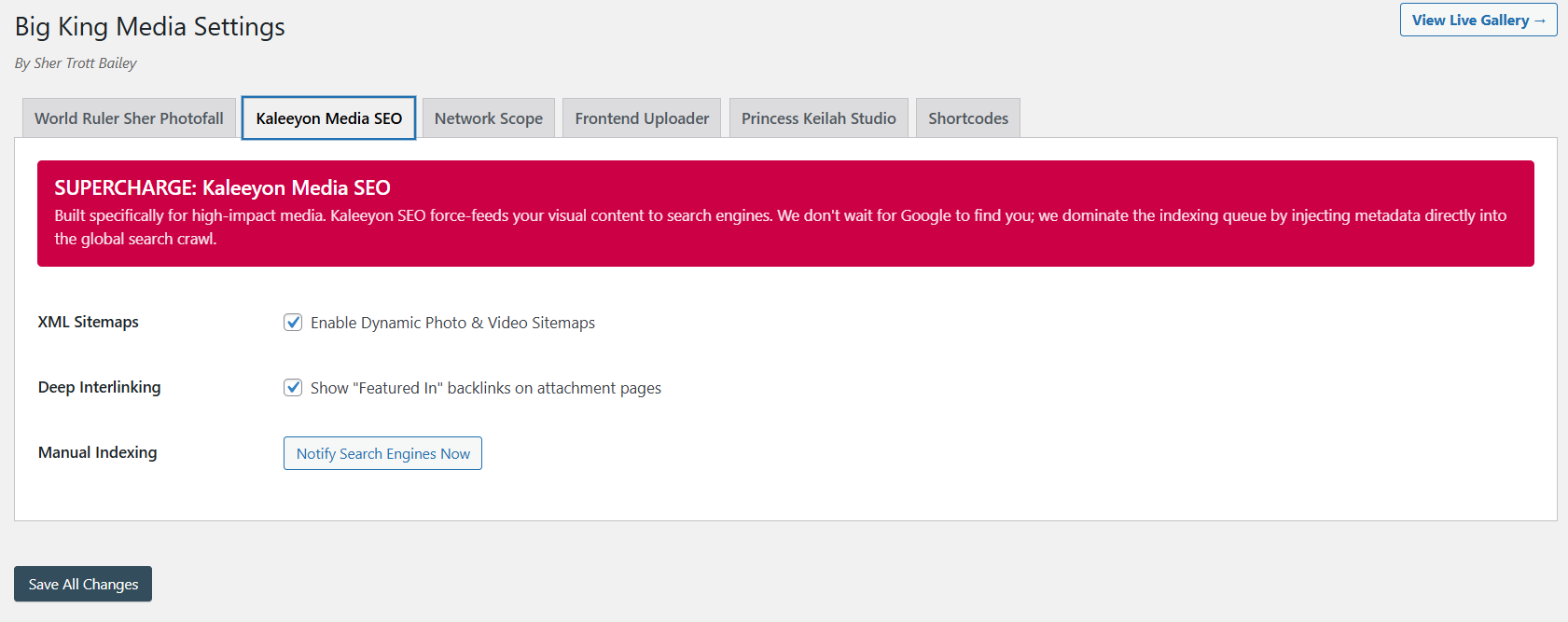
Alt text and titles
Make assets more understandable for users, search engines, and future editors who need to locate the right file quickly.
Interlinking
Use richer asset context so shared media strengthens related content rather than remaining a disconnected file bucket.
Visibility improvements
Help important media assets surface more consistently in plugin-driven displays and search results.
🚀Recommended workflows for real sites
Brand network workflow
Upload logos, banners, product shots, and reusable campaign assets once. Index the network. Let editors browse from the shared modal instead of re-uploading brand media on each subsite.
Music or audio workflow
Upload audio, assign thumbnails, organize metadata, then deploy floating players, compact players, or Studio Mode pages using shortcodes and playlist layouts.
Contributor workflow
Create a frontend upload page for approved users. Let them add titles and alt text during submission. Review the uploads, then publish them through galleries or lightboxes across the network.
❓Frequently asked questions
Does Big King Media replace the normal WordPress media library?
No. It extends and enhances the media experience, especially for multisite shared access, publishing interfaces, and frontend workflows.
When should I rebuild the network media index?
Rebuild after large imports, migrations, subsite media cleanups, or any major changes to how media should appear across the network.
Can I use the plugin without exposing wp-admin to contributors?
Yes. The frontend uploader and frontend management tools are ideal for controlled submission and media handling flows outside the dashboard.
Which features are best for visually rich front-end pages?
Photofall, the responsive masonry grid, lightbox mode, and Studio Mode are the strongest choices for media-led presentation pages.
Can the main admin enforce consistent behavior across all subsites?
Yes. Use the network settings and network override settings to establish master rules and defaults.

 and then