Turn the homepage into a media front door
Use Photofall as a visual surface where visitors can immediately browse the media story of the site.
Big King Media lets you upgrade the visual media experience of a WordPress site without rebuilding the entire design. Keep the theme, keep the structure, and add a powerful media-first layer on top.
This is one of Big King Media’s strongest promises: you do not need a new theme just to make your website feel like a media platform. Photofall can become a homepage, visual archive, gallery hub, creator portal, or media-first front door while your existing WordPress setup stays in place.
Many WordPress sites have strong media buried inside posts, uploads, galleries, or archives. The homepage still looks like a normal theme page, while the real value of the site is hidden.
Replacing a theme can be risky. It can break layouts, affect SEO, change menus, disturb builders, or create weeks of redesign work. Big King Media gives a different path: keep the existing theme and add a media-first operating layer where it matters.
Theme-safe promise: Big King Media does not force a site owner to choose between keeping their current theme and building a stronger media experience. It lets the media layer upgrade the front end while the theme remains intact.
A strong media homepage should become a public browsing surface. Visitors should immediately see what the site contains, open media easily, follow posts, listen, watch, explore collections, and move deeper into the archive.
Use Photofall as a visual surface where visitors can immediately browse the media story of the site.
Keep the current theme, menu structure, plugins, and content flow while adding a stronger media layer.
Build a homepage that can feature images, videos, audio, posts, playlists, lightbox views, and curated media groups.
Use post cards and media cards so the homepage becomes a discovery surface for both content and assets.
Artists, churches, schools, podcasters, families, and archives can present media without needing a custom theme.
The homepage can connect back to shared media, frontend uploads, AI alt text, media SEO, folders, and studio playback.
These screenshots show the pieces that support a media-first homepage: Photofall settings, masonry grid, lightbox, shortcodes, frontend uploads, and integrated studio experiences.

Configure the media-first display layer from inside Big King Media.
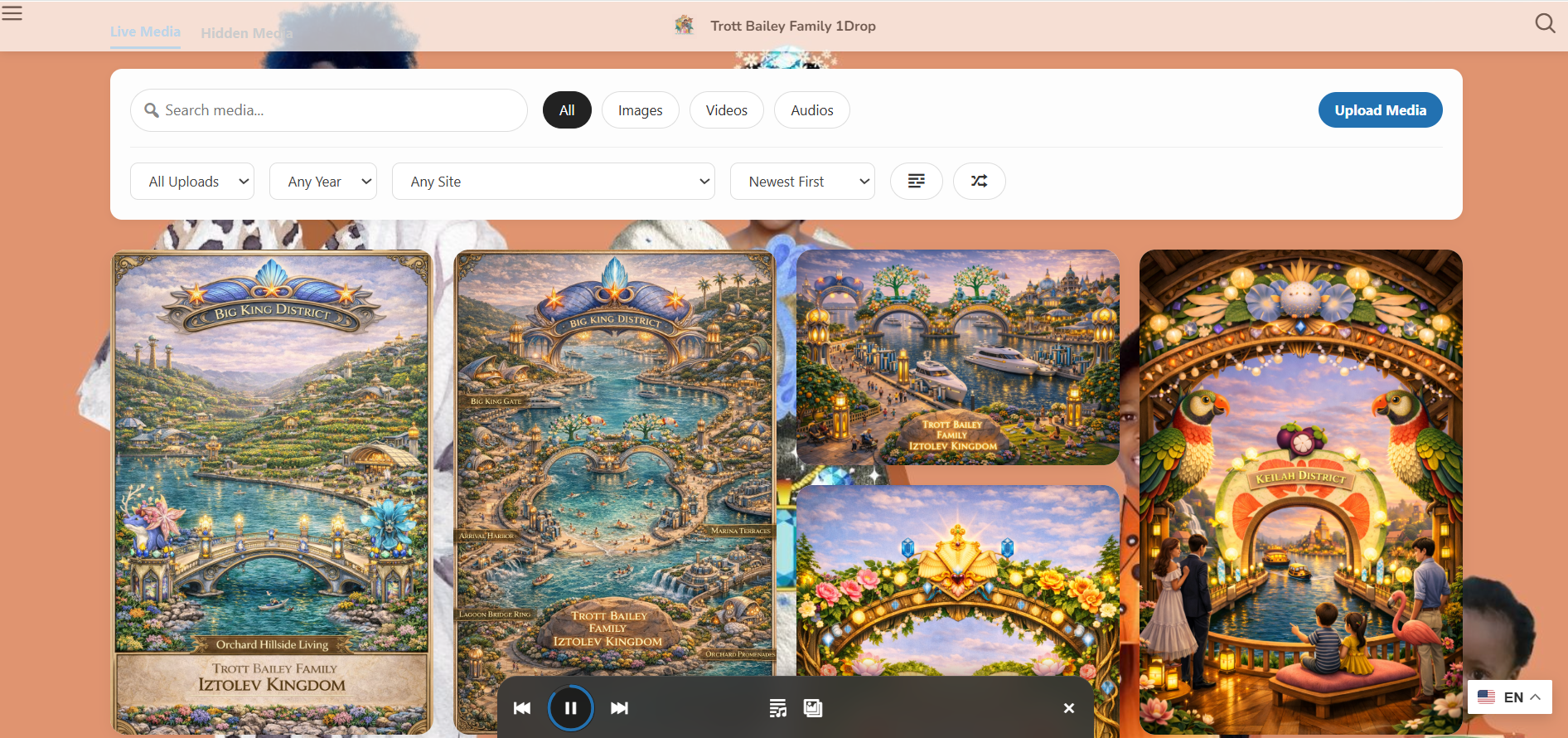
Use a visual, media-first browsing surface instead of a plain blog-style homepage.
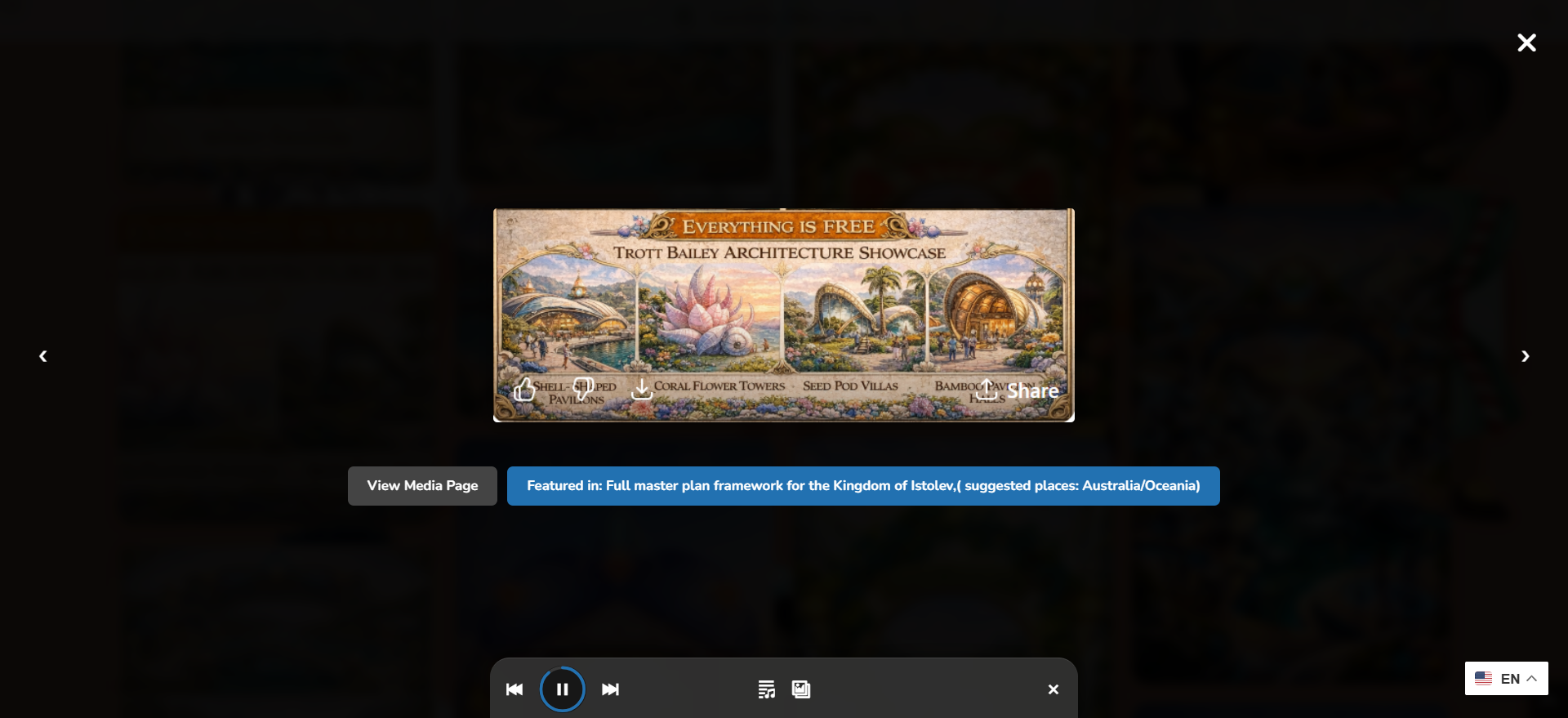
Let visitors open media without leaving the homepage experience.
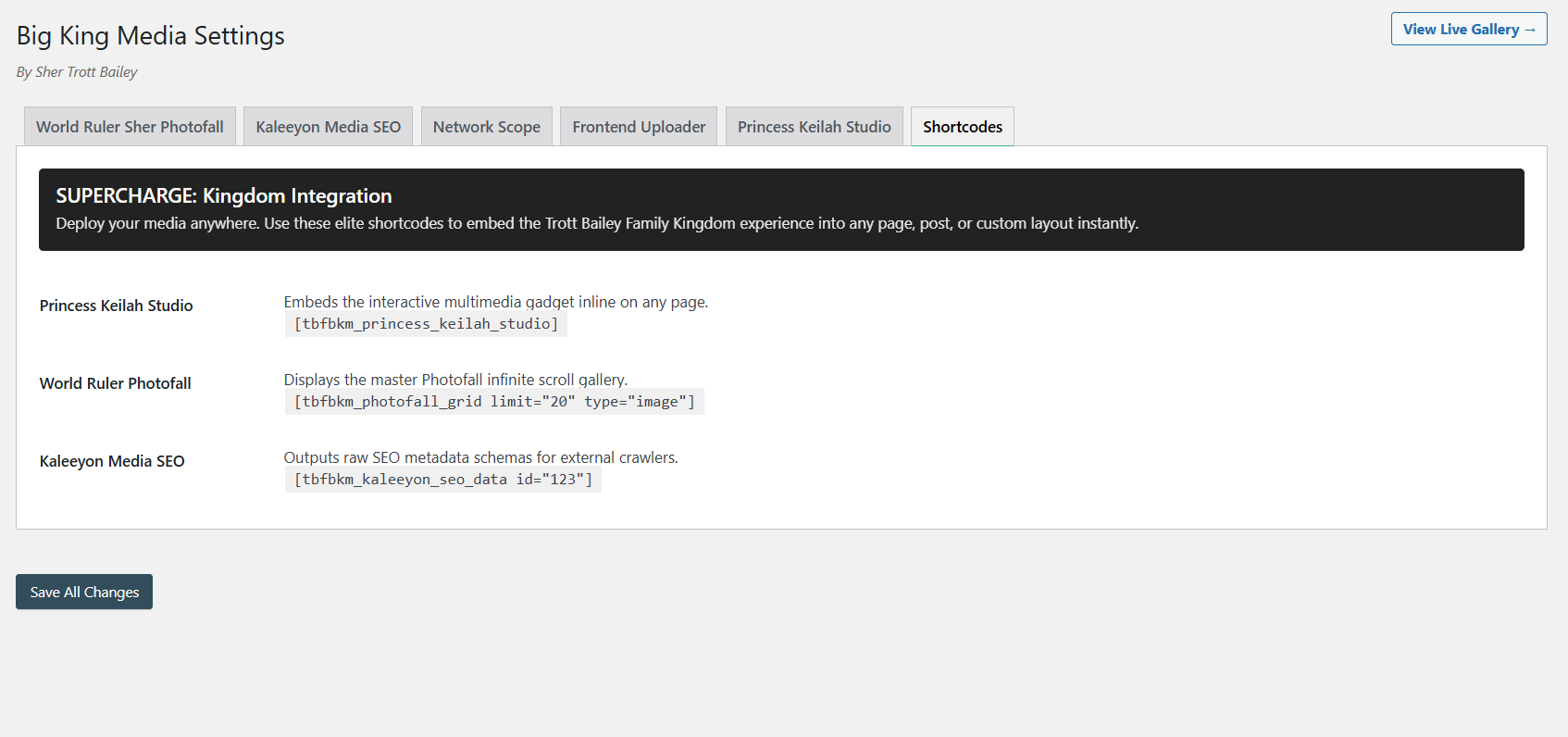
Place galleries, players, and uploaders where the current theme can display them.
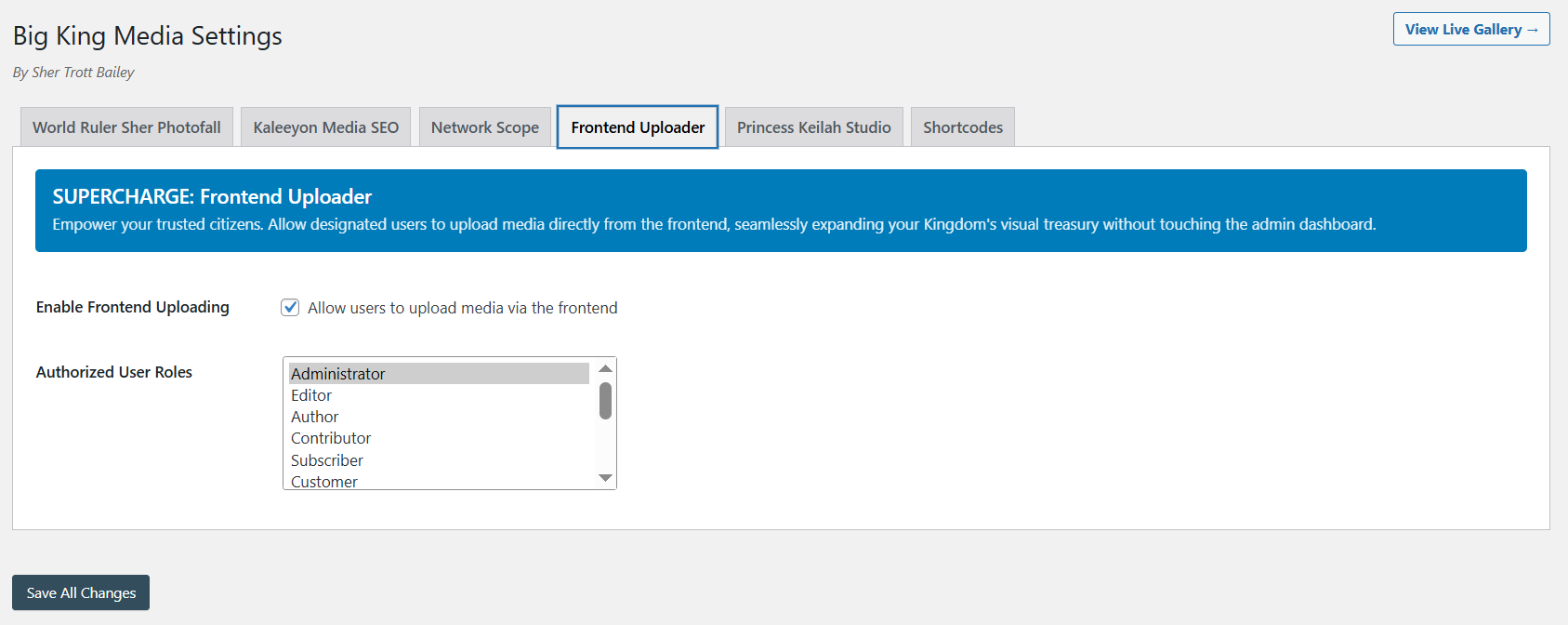
Allow trusted media contribution without making everyone live inside wp-admin.
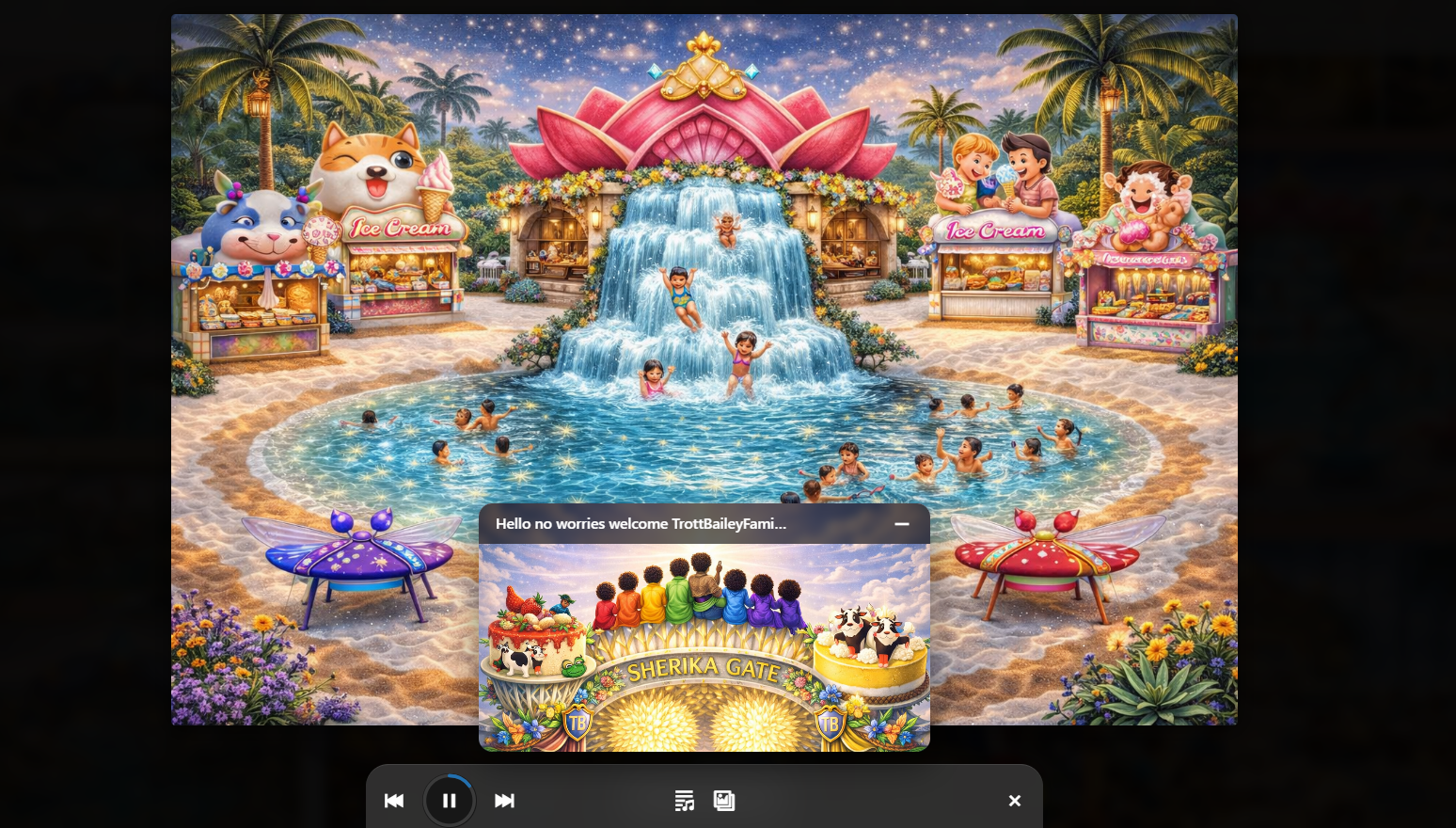
Turn the media layer into richer storytelling with audio, visuals, and playlists.
A media-first homepage should not force posts and media to live in separate worlds. Photofall is designed to bring them together.
On a single WordPress site, Photofall can pull posts from that site and display them as native Photofall cards. On WordPress Multisite, Photofall can pull posts from selected sites across the network, giving the owner control over which subsites contribute content to the media-first browsing experience.
Photofall can act as a visual homepage layer that includes the site’s own posts, featured images, media, and article cards in one browsing experience.
For WordPress Multisite, admins can control which subsites contribute posts to Photofall, making it useful for editorial networks, school networks, ministries, agencies, and multi-brand platforms.
Visitors can open a post card and read the article directly inside the Photofall lightbox, keeping them inside the visual browsing experience instead of forcing a page jump immediately.
After reading inside the lightbox, visitors can close the article and continue browsing Photofall, moving naturally between posts, images, videos, audio, and media groups.
At the end of the lightbox article, Photofall can provide a clear button to open the original post on its source site for the full native reading experience.
Network operators can decide whether Photofall should show local posts only, selected network posts, media only, or a mixed media-and-content experience.
Important positioning: this makes Photofall more than a gallery. It becomes a media-and-content homepage layer where visitors can browse posts, images, video, audio, and curated media groups in one continuous experience.
The video assets help visitors understand that this is not only a layout trick. It is a full media operating layer that can make an existing WordPress site feel like a media platform.
Use this video to show the larger media-first direction behind the homepage layer.
Use the deeper walkthrough for buyers who want the full operating-layer context.
The theme-safe approach matters because many WordPress owners cannot risk breaking their design, menus, templates, SEO structure, or builder layout. Big King Media lets the media layer become the upgrade.
A media-first homepage should not force posts and media to live in separate worlds. Photofall is designed to bring them together.
On a single WordPress site, Photofall can pull posts from that site and display them as native Photofall cards. On WordPress Multisite, Photofall can pull posts from selected sites across the network, giving the owner control over which subsites contribute content to the media-first browsing experience.
Photofall can act as a visual homepage layer that includes the site’s own posts, featured images, media, and article cards in one browsing experience.
For WordPress Multisite, admins can control which subsites contribute posts to Photofall, making it useful for editorial networks, school networks, ministries, agencies, and multi-brand platforms.
Visitors can open a post card and read the article directly inside the Photofall lightbox, keeping them inside the visual browsing experience instead of forcing a page jump immediately.
After reading inside the lightbox, visitors can close the article and continue browsing Photofall, moving naturally between posts, images, videos, audio, and media groups.
At the end of the lightbox article, Photofall can provide a clear button to open the original post on its source site for the full native reading experience.
Network operators can decide whether Photofall should show local posts only, selected network posts, media only, or a mixed media-and-content experience.
Important positioning: this makes Photofall more than a gallery. It becomes a media-and-content homepage layer where visitors can browse posts, images, video, audio, and curated media groups in one continuous experience.
A new theme may be the right move for some sites. But for many media-heavy sites, the better first step is to add a media operating layer that works with the current theme.
| Approach | What it gives you | Risk | Best when | Big King Media angle |
|---|---|---|---|---|
| Replace the theme | A full visual rebuild and new template structure. | Can disrupt design, SEO, menus, layouts, builders, and custom styling. | You need a complete redesign. | May still need media plugins afterward. |
| Add a gallery plugin | A gallery display inside existing pages. | Usually solves display only, not media operations. | You only need simple image/video galleries. | Photofall goes further by connecting to the wider media stack. |
| Add separate media plugins | Folders, uploaders, players, galleries, and SEO tools separately. | Creates plugin sprawl and disconnected workflows. | You need one narrow feature at a time. | Big King Media consolidates the media workflow into one operating layer. |
| Use Big King Media | A media-first layer over your current WordPress setup. | Requires setup discipline and performance-aware configuration. | You want stronger media without a theme rebuild. | Keep the theme. Upgrade the media stack. |
This is strongest for sites where media is central, but the site owner does not want to rebuild the whole design just to show that media properly.
Turn releases, cover art, music videos, playlists, behind-the-scenes media, and audio experiences into the front page.
Make sermons, event photos, worship media, announcements, and teaching videos easier to browse from the homepage.
Show student projects, classroom media, events, lessons, and multi-campus media without redesigning the school website.
Feature posts, images, videos, and cross-network media cards in a visual homepage experience.
Present historical photos, videos, audio memories, and curated collections as a living media archive.
Add a premium media-first experience to existing client sites without forcing a full theme migration.
Big King Media gives WordPress a theme-safe media homepage layer. It lets your site become more visual, browsable, and media-first without destroying the structure you already built.
These answers support searches around WordPress media homepage, gallery homepage, theme-safe plugins, and media-first site design.
A theme-safe media homepage is a media-first front-end layer that can be added to an existing WordPress site without replacing the active theme. It lets the site present media more powerfully while keeping the current design system in place.
No. Big King Media is designed to add media operating-layer functionality on top of your existing WordPress setup. You can keep your active theme and use Photofall or other Big King Media features to create a stronger media experience.
Photofall can be used as a media-first homepage, gallery hub, archive surface, or visual browsing page depending on your site setup and configuration.
Yes. Photofall can be positioned as a mixed media-and-content layer. On single-site WordPress, it can display posts from the current site. On WordPress Multisite, it can support selected network sources so admins can decide which subsites contribute posts. Visitors can read posts inside the Photofall lightbox, then either continue browsing or use a button at the end of the article to open the original post on its source site.
No. The theme-safe homepage layer is useful for both single-site WordPress installs and multisite networks. Multisite users get the added advantage of shared media access and network-aware media workflows.
Creators, musicians, churches, schools, agencies, family archives, cultural archives, news networks, and media-heavy businesses can benefit when media is central to the visitor experience.


 and then